Summary
When attempting to register the Bridgemate III server, error 0 may be returned and the server cannot be registered. This article explains the possible causes of this error and how to resolve it.
Problem description
Registration of the Bridgemate III server allows you to assign the server to your club and enables future updates. The Bridgemate III server is registered from the Bridgemate III server configuration window in Bridgemate Control Software.
To register the server, the following must be correctly configured in Bridgemate Control Software:
- The Wi-Fi network configuration
- The club account number and verification code
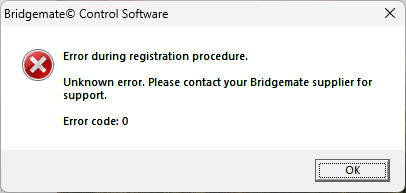
If any of these are incorrect, the following error may be displayed:
Solution
Check the following in this order:
- Wi-Fi network configuration
- Bridgemate club account number and verification code
Wi-Fi network
If the Wi-Fi network is not correctly configured, the Bridgemate III server cannot obtain an IP address, which is required for registration.
Check the Wi-Fi configuration as follows:
- Go to menu Server -> Bridgemate III server configuration.
- Click WiFi settings.
- Click Scan networks and wait a few seconds until the available Wi-Fi networks are listed.
- Click Network info.
- Wait a few seconds for the details of the selected network to appear. A correctly connected network should display:
- IP address
- SSID
- Gateway
- Subnet mask
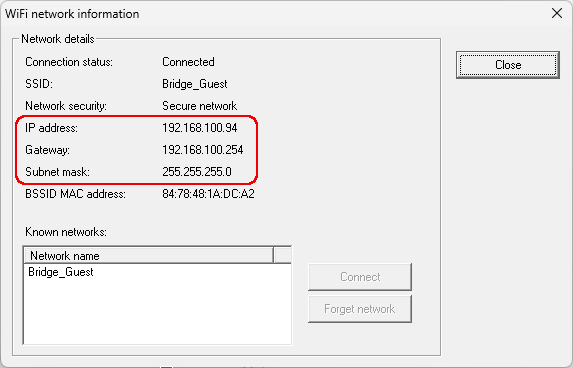
If these details do not appear, the Wi-Fi network is not properly configured or does not allow connection. In most cases, this is caused by an incorrect password.
To reconfigure the Wi-Fi network:
- Close the Network info window.
- Select the correct network from the available Wi-Fi networks list and click Set network.
- Enter the correct password, verify it carefully, and confirm.
- Wait a few seconds, then click Network info again and check whether an IP address is shown.
- If the IP address and gateway appear, the Wi-Fi is correctly configured. If not, repeat the steps above or try a different Wi-Fi network.
Once the Wi-Fi is properly configured, try registering the server again. If registration still fails and you have confirmed that the server has obtained an IP address, proceed to check the Bridgemate club account number and verification code.
Check Bridgemate club account number and verification code
The registration process requires the correct Bridgemate club account number and verification code to be entered in Bridgemate Control Software.
First, verify these details on your club account page:
- Go to https://www.bridgemate.com/app/club-login/ and log in using your Bridgemate club account number and password. Your Bridgemate club account number starts with a 2-digit country code.
- Go to App configuration.
- Scroll to the bottom of the page to find your club account number and verification code.
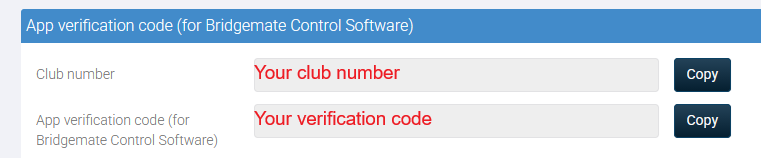
⚠️ Note: The verification code is not the same as your website password!
- Scroll back to the top of the page, enable Use the Bridgemate App, then click the blue Save button below.
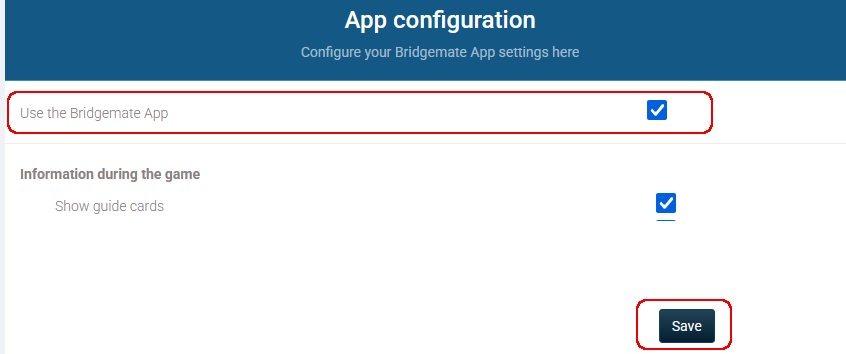 Once server registration is complete, you may disable this option again.
- In Bridgemate Control Software, go to Tools -> Options -> App settings.
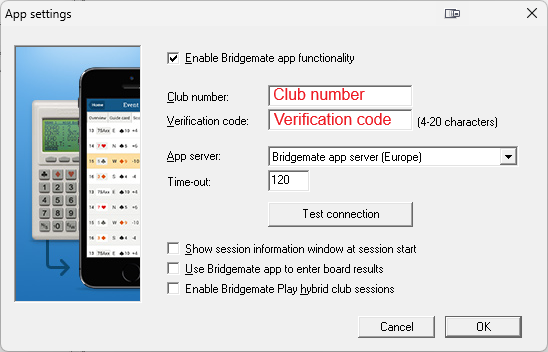
- Enter your Bridgemate club account number and verification code, then click Test connection.
The test connection must succeed. If it fails, verify the account number and verification code again and make sure that "Use the Bridgemate App" is enabled on the website (see step 4).
- Once the test connection is successful, close this window and try registering the server again.
Additional information
There is no additional information available for this article.
See also
No further references available for this article.
Update history
23-03-2026 - Article published