Summary
If a Bridgemate scoring device displays the message Critical system error when it is switched on, and afterwards appears to run an older firmware version than the one you installed, the device has started in recovery mode. This article explains what causes this behaviour and how to return the device to normal operation.
Problem description
At device start the following message is shown on screen:
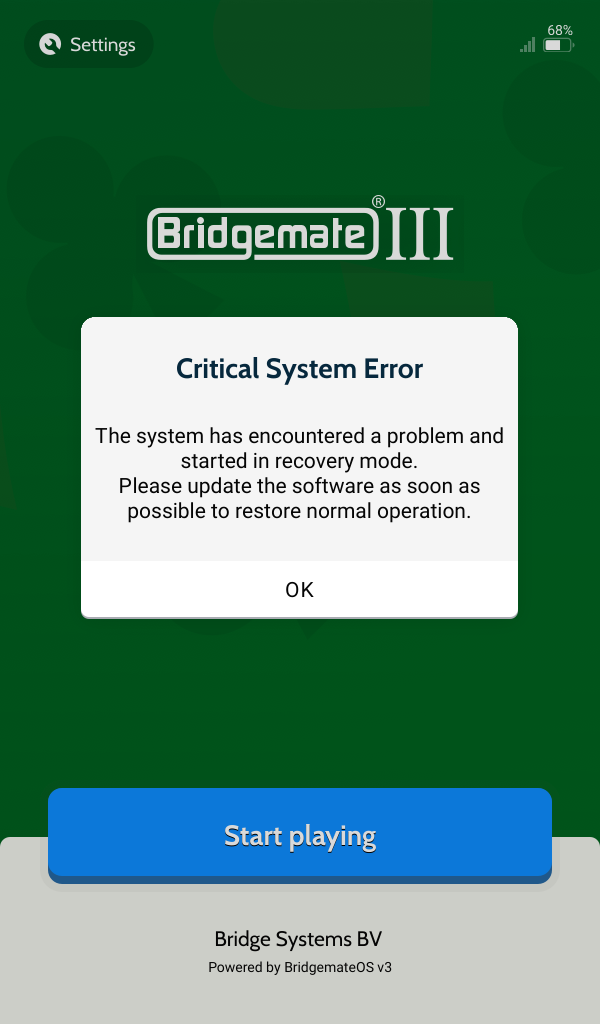
After this message is dismissed, the Bridgemate runs the factory-installed original firmware version instead of a later installed newer version.
Cause
Why the message appears
The Bridgemate monitors whether it is able to start up correctly. When the device fails to boot in normal mode three times in a row, it automatically switches to recovery mode. Recovery mode is a built-in safety mechanism that ensures the device can always be started and serviced, even when the installed firmware cannot be loaded.
In almost all cases the start-up in recovery mode succeeds, and the message above is shown to inform you that the device is not running in its normal operating mode.
Why the original firmware version is shown
Recovery mode uses the firmware image that was programmed into the device in the factory. This image is stored separately and is never overwritten by firmware updates. As a result, a device that starts in recovery mode runs the firmware version it was shipped with. If you have updated the Bridgemate to a newer firmware version in the meantime, it will appear as if the device has reverted to its original version. The newer firmware is still present on the device; it is simply not being used while the device runs in recovery mode.
Solution
Method 1: restart the Bridgemate
Although the message advises you to update the software, it is recommended to try a simple restart procedure first. In many cases, the following procedure will boot the device in normal mode again:
- Dismiss the error message.
- Keep the device awake by tapping the screen regularly, so that it does not go into standby.
- After 30 seconds keeping the device awake, press and hold the power button until the power menu appears on screen.
- Select Restart Bridgemate.
After the restart, check whether the Bridgemate starts in normal mode and whether the Critical system error message no longer appears.
Method 2: update the firmware
If the message is shown again after the restart, update the firmware of the device:
- Open the Settings menu on the Bridgemate and access the Software page.
- Start the software update and wait until the update has been completed. This update is a full device update and takes longer than regular updates.
- Allow the device to restart and verify that it now boots in normal mode.
If none of these methods have recovered the device, contact your Bridgemate supplier for further support.
Additional information
There is no additional information available for this article.
See also
No further references available for this article.
Update history
06-10-2026 - Article published